Default Wheels
The Random Prize Wheel includes nine pre-made wheels you can spin right away. Each one demonstrates a different layout or display style — some use only text, others combine text with images, and one uses image-only panels. You can explore, edit, and save any of these once you are signed up and logged in.
-
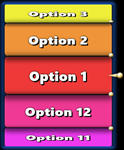
Default (1-12) — A simple twelve-panel wheel numbered 1 through 12. This is the best starting point for building a custom wheel with your own labels or colors.
-
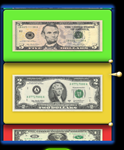
Money Wheel — Seven panels with real US bills from $1 to $100. It is a weighted wheel: smaller bills come up more often ($1 about 40% of the time, $100 only about 2%), which makes it a good example of how weights work.
-
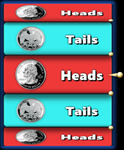
Heads / Tails — A two-panel wheel that works like flipping a coin. Each side includes both text and imagery to show either “Heads” or “Tails.”
-
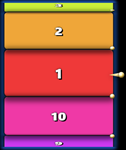
1-10 — A simple number wheel featuring ten evenly spaced panels labeled 1 through 10. Each panel is clearly marked with bold numerals, making it perfect for random number picks, classroom activities, or simple games of chance.
-
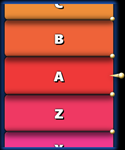
A-Z — An alphabet wheel with 26 colorful panels, each labeled A through Z. Ideal for learning games, letter matching, or random letter selection—great for classrooms, word challenges, or fun educational spins.
-
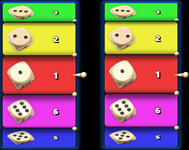
Pair Of Dice — Two six-panel wheels representing the sides of a die (1–6). Each panel uses an image of dice dots along with text to demonstrate a text and image layout. This is an example of multiple wheel functionality.
-
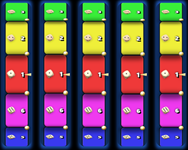
Yahtzee — This is 5 six-panel wheels representing the sides of a die (1–6). Each panel also uses an image of dice dots along with text. This is an example of the maximum number of wheels that can be spun together.
-
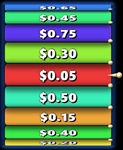
The Price Is Right — A twenty-panel themed wheel styled after the classic TV show. It shows each denomination from $0.05 to $1.00 in 5 cent increments.
-
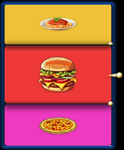
Dinner Selector — A fun eight-panel wheel with images of food (pizza, tacos, pasta, etc.). It’s a full image-only example perfect for random meal choices.
All of these wheels can be customized just like your own. Adjust the colors, panel count, labels, or images, then click Save Wheel to store your personalized version in My Wheels (available to logged-in users).
Customize Wheel
The Customize Wheel panel lets you change the look and contents of every wheel you spin.
Here you can rename panels, add or remove them, assign images or colors, and fine-tune spin weighting.
-
 — Collapses the panel to get it out of the way.
Header Area
-
Wheel Name — The current wheel title appears here (e.g., Default (1–12)).
Click the ✏️ pencil icon to rename the wheel.
- Panel Count — Displays how many panels the wheel currently has (e.g., 12 panels).
Main Action Buttons
-
 — Adds a new panel to the end of the list.
Each new panel includes default text, color, and weight settings. Up to 100 panels can be added to the list.
— Adds a new panel to the end of the list.
Each new panel includes default text, color, and weight settings. Up to 100 panels can be added to the list.
-
 — Opens a file picker allowing you to import panel labels or images
from a comma-separated or line-separated text file.
— Opens a file picker allowing you to import panel labels or images
from a comma-separated or line-separated text file.
Panel List
Each row in the list represents a single wheel panel.
You can modify each one individually using the controls on its row.
-
Text Field —
 Allows you to type in the label that will appear on the wheel panel (e.g., “Option 1”).
-
Color Button —
 Opens the color picker so you can choose a unique background color for that panel.
-
Image Button —
 Lets you select or replace the image displayed on the panel.
When both text and image are used, they appear together. Removing the text
will display only the image on the panel. Hovering over the button with the mouse will
show a small popup of the current image assigned to that panel, if there is one. Right
clicking on the button will allow you to delete the assigned image off of the panel.
Lets you select or replace the image displayed on the panel.
When both text and image are used, they appear together. Removing the text
will display only the image on the panel. Hovering over the button with the mouse will
show a small popup of the current image assigned to that panel, if there is one. Right
clicking on the button will allow you to delete the assigned image off of the panel.
-
Weight Control —
 Adjusts the spin weighting for that panel.
Higher weight values make the panel more likely to be selected when spun.
Adjusts the spin weighting for that panel.
Higher weight values make the panel more likely to be selected when spun.
-
Delete Button —
 Removes that panel from the wheel entirely.
Footer Buttons
-
 —
All edits are applied instantly to the on-screen wheel.
If you are signed in, you can save the customized version by selecting
Save Wheel. The wheel will immediately appear in your My Wheels list,
so you can easily load it back in during future visits.
—
All edits are applied instantly to the on-screen wheel.
If you are signed in, you can save the customized version by selecting
Save Wheel. The wheel will immediately appear in your My Wheels list,
so you can easily load it back in during future visits.
-
 — If you edit a Default Wheel or a previously saved custom wheel,
you can bring back all of its original settings by clicking the Reset Wheel button.
— If you edit a Default Wheel or a previously saved custom wheel,
you can bring back all of its original settings by clicking the Reset Wheel button.
Tip: Use consistent colors and clear images to make your wheel easy to read while spinning.
Settings
The Settings menu controls how your wheel looks, sounds, and behaves.
It includes options for Spin, Confetti & Sound, Background Color, and Wallpaper.
Use these panels to customize the overall experience—from how long the wheel spins to the visual style and effects shown after each result.
All settings take effect immediately without needing to be saved. However, if you are logged in, these settings can be saved to your account and will automatically apply each time you return.
Settings – Spin Options
The Spin section lets you control how long and how randomly the wheel spins each time.
These options affect both manual spins and auto-spins, giving you full control over the feel of the wheel.
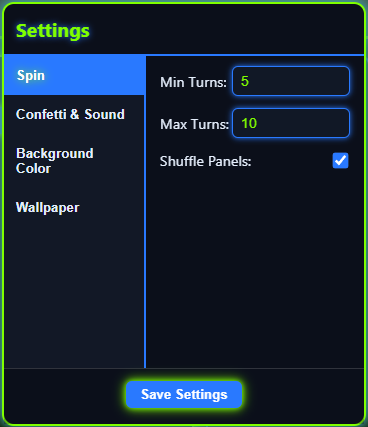
Adjusting Spin Behavior
-
Min Turns — The minimum number of full wheel rotations before it begins to slow down.
Lower values make spins shorter; higher values make them longer.
-
Max Turns — The maximum number of rotations the wheel can spin.
The final spin length will vary randomly between your Min and Max settings.
-
Shuffle Panels — When checked, the order of panels is randomly rearranged before each spin.
This ensures every result feels new and unpredictable.
Settings – Confetti & Sound
The Confetti & Sound section controls the celebration effects and audio feedback that play when the wheel stops.
These options let you choose how lively or quiet each spin result feels.
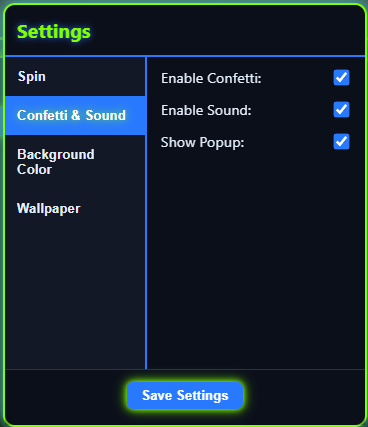
Customizing Visual and Audio Effects
-
Enable Confetti — Toggles the confetti burst that appears when a winner is selected.
Turn this off for a cleaner or more professional display.
-
Enable Sound — Controls the ticking and winning sounds during and after spins.
Uncheck this option for silent operation or presentation mode.
-
Show Popup — Displays the winner’s name in a centered popup window when the spin ends.
Disable if you prefer to see results only on the wheel itself.
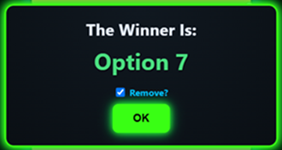
If enabled, the Popup window will also give you the option to remove the winning entry, thereby preventing
it from being selected in future spins. The toggle will retain its value until it is altered.
This is a great feature to use as a process of elimination.
Settings – Background Color
The Background Color section lets you control the colors of the three main panels on the desktop layout.
This allows you to personalize the interface to match your theme, brand colors, or visual preferences.
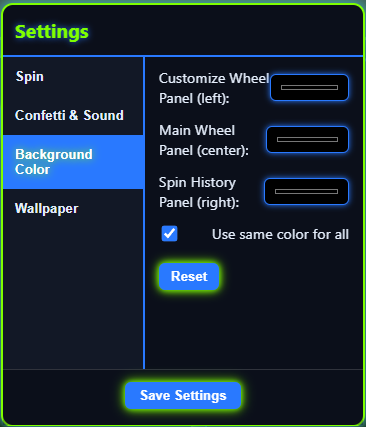
Adjusting Panel Colors
-
Customize Wheel Panel (left) — Sets the background color for the left-side panel containing wheel customization controls.
-
Main Wheel Panel (center) — Changes the background behind the spinning wheel itself.
-
Spin History Panel (right) — Sets the color of the panel displaying previous spin results.
-
Use same color for all — When checked, one color selection applies to all panels at once.
Uncheck it to style each panel individually.
-
Reset — Restores all panel colors to the default dark theme.
Settings – Wallpaper
The Wallpaper section allows you to customize the background image shown behind your wheel and side panels.
You can upload a custom wallpaper or use one of your saved designs to give your wheel a unique look.
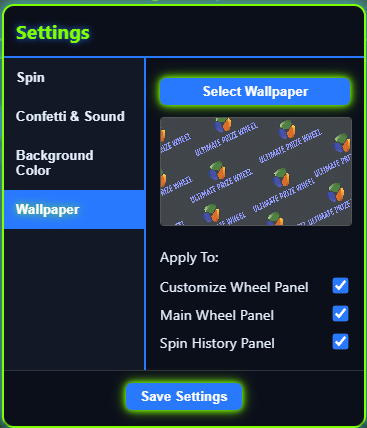
Choosing and Applying Wallpaper
-
Select Wallpaper — Opens your image browser so you can choose a wallpaper from your device.
Supported formats include JPG and PNG.
-
Apply To — Choose where the wallpaper will appear:
- Customize Wheel Panel — Applies the wallpaper to the left panel.
- Main Wheel Panel — Displays the wallpaper behind the spinning wheel.
- Spin History Panel — Adds the wallpaper to the right panel showing previous results.
-
You can enable any combination of panels for a coordinated or mixed layout style.
Saving Your Settings
As mentioned previously, all settings take effect immediately without the need to save them. However, if you
want the settings to be applied each time you come back to the site, you can create an account, login, and save the settings to your account.
After adjusting your preferences, click

to save them to your account.
Your chosen spin speed, shuffle option, confetti, sound, popup, background color and wallpaper will automatically apply to all future spins on any device, desktop and mobile, as long as you are logged in.
Tip: Try setting a wider range between Min and Max for more variety in spin durations.
My Wheels
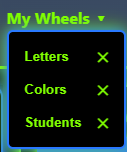
The My Wheels menu lists all of the custom wheels you have saved.
Every time you save a new wheel, it is automatically added to this list so you can load it again later with a single click.
Use this menu to quickly switch between your saved designs or remove wheels you no longer need.
Managing Your Wheels
- Click the My Wheels menu to see your saved wheels.
- Select any wheel name to load it into the builder.
- Click the X icon beside a name to delete that saved wheel.
- Newly saved wheels appear here automatically right after saving.

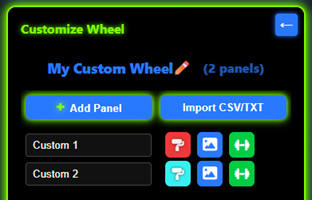
 button to open the empty builder screen (shown above).
 color picker.
 image button.
 weight control.
 trash button.
 button and a new default wheel will be added to the layout immediately.
 Once you have added a new wheel, the Customize Wheel panel will display tabs at the bottom so you can switch back and forth to customize
each wheel to your liking.
Once you have added a new wheel, the Customize Wheel panel will display tabs at the bottom so you can switch back and forth to customize
each wheel to your liking.
 — You can easily remove any wheel from the layout by simply switching to its tab and clicking the Remove Wheel button.
 button beneath the wheel, or you can spin
all of the wheels at once by clicking the
button beneath the wheel, or you can spin
all of the wheels at once by clicking the  button near the upper left corner of the panel. The popup at the end will include
the results from all of the wheels for your convenience.
button near the upper left corner of the panel. The popup at the end will include
the results from all of the wheels for your convenience.
 to save the entire layout. The new layout will appear at the bottom of your My Wheels list.
And again, you must be signed in to save and access custom multiple wheel layouts later.
to save the entire layout. The new layout will appear at the bottom of your My Wheels list.
And again, you must be signed in to save and access custom multiple wheel layouts later.